# io.Connect Desktop 9.2
Source: https://docs.interop.io/desktop/getting-started/changelog/platform/9-2/index.html
## io.Connect Desktop 9.2
*Release date: 20.02.2024*
| Components | Version |
|------------|---------|
| Electron | [28.1.4](https://releases.electronjs.org/release/v28.1.4) |
| Chromium | 120.0.6099.216 |
| Node.js | 18.18.2 |
The following libraries are bundled with **io.Connect Desktop** 9.2 and will be used for [auto injection](https://docs.interop.io/desktop/getting-started/how-to/interop-enable-your-apps/javascript/index.md#auto_injection):
| Injected Library | Version |
|------------------|---------|
| [`@interopio/desktop`](https://www.npmjs.com/package/@interopio/desktop) | [6.2](https://docs.interop.io/desktop/getting-started/changelog/libraries/interopio-desktop/index.md#62-620) |
| [`@interopio/fdc3`](https://www.npmjs.com/package/@interopio/fdc3) | 2.1 |
## New Features
> ### Search API Documentation
>
> Added documentation for the JavaScript [Search API](https://docs.interop.io/desktop/capabilities/search/javascript/index.md) exposed via the [`@interopio/search-api`](https://www.npmjs.com/package/@interopio/search-api) library. The Search API enables you to create both search providers and search clients. Search providers are apps that respond to search queries, whereas search clients are apps that initiate searches.
>
> The following example demonstrates enabling the Search API:
>
> ```javascript
> import IODesktop from "@interopio/desktop";
> import IOSearch from "@interopio/search-api";
>
> const config = {
> libraries: [IOSearch]
> };
>
> const io = await IODesktop(config);
>
> // Now you can access the Search API via `io.search`.
> ```
> ### Download Manager
>
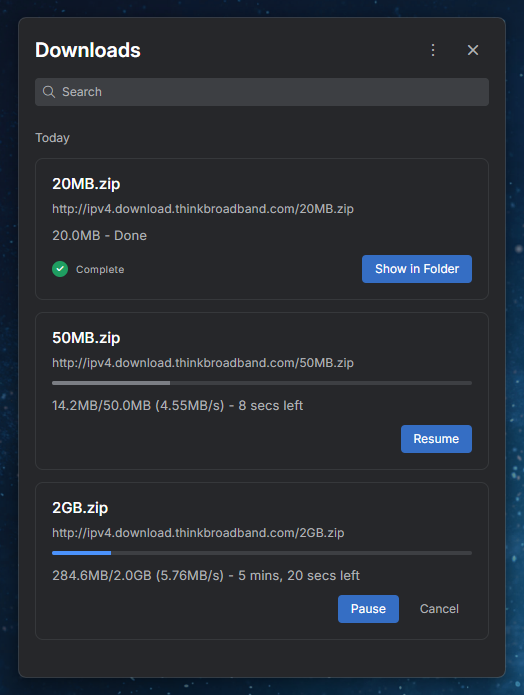
> The io.Connect [Download Manager](https://docs.interop.io/desktop/capabilities/windows/window-management/javascript/index.md#window_operations-download) is a central place for managing all downloads. Users can pause, resume or cancel downloads from it, open the location of a downloaded file, clear the list of downloads or remove individual items from it, search for downloads, set the default location for downloading files. The Download Manager can be started via a configurable keyboard shortcut (`CTRL + J` by default), and can also be configured to open automatically when a download is initiated.
>
> 
>
> To configure the Download Manager, use the `"downloadManager"` top-level key in the `system.json` [system configuration](https://docs.interop.io/desktop/developers/configuration/system/index.md#download_manager) file of **io.Connect Desktop**.
>
> The following example demonstrates how to change the default shortcut for the Download Manager and configure it to auto start when a download is initiated:
>
> ```json
> {
> "downloadManager": {
> "autoStartOnDownload": true,
> "shortcut": "ctrl+alt+d"
> }
> }
> ```
>
> The `"downloadManager"` object has the following properties:
>
> | Property | Type | Description |
> |----------|------|-------------|
> | `"appName"` | `string` | Name of an io.Connect app, as specified in its definition, to be used as a Download Manager. Defaults to `"io-connect-download-manager"`. |
> | `"autoStartOnDownload"` | `boolean` | If `true`, the Download Manager app will be started automatically when a download is initiated. Defaults to `false`. |
> | `"shortcut"` | `string` | Shortcut for starting the Download Manager app. Defaults to `"ctrl+j"`. |
> ### Using Downloads Programmatically
>
> To [manage downloads programmatically](https://docs.interop.io/desktop/capabilities/windows/window-management/javascript/index.md#window_operations-download-downloading_files), use the `downloads` property of the `iodesktop` object injected in the global `window` object. You can retrieve and set the download location, get a list of all download items, clear the downloads list, manipulate individual download items (pause, resume, remove), open the location of downloaded items, and get notified when the state of a download item changes or a chunk of it has been downloaded.
>
> The following example demonstrates how to retrieve a list of all download items, pause or resume items, and remove items from the download list:
>
> ```javascript
> // Retrieve a list of all download items.
> const downloads = await iodesktop.downloads.list();
>
> const itemID = downloads[0].id;
>
> // If the download is paused, it will be resumed and vice versa.
> await iodesktop.downloads.pauseResume(itemID);
>
> // Remove the download item from the downloads list.
> await iodesktop.downloads.removeItem(itemID);
> ```
> ### Cloning Windows
>
> > ⚠️ *Note that this feature is available only for [web groups](https://docs.interop.io/desktop/capabilities/windows/window-management/overview/index.md#window_groups-web_groups).*
>
> Cloning allows you to duplicate io.Connect Windows with their current state. Windows can be [cloned programmatically](https://docs.interop.io/desktop/capabilities/windows/window-management/javascript/index.md#window_operations-clone) or by enabling the ["Clone" button](https://docs.interop.io/desktop/capabilities/windows/window-management/overview/index.md#clone_button) for end users. If the cloned window is a tab window, it will be added to the same tab group. All other types of windows will be cascaded:
>
> 
>
> The "Clone" button is disabled by default and can be enabled or disabled globally via the [system configuration](https://docs.interop.io/desktop/developers/configuration/system/index.md#window_settings-clone_button) or per app via the [app definition](https://docs.interop.io/desktop/developers/configuration/application/index.md#clone_button).
>
> To enable the "Clone" button globally for all io.Connect Windows, use the `"showCloneButton"` property of the `"windows"` top-level key in the `system.json` file:
>
> ```json
> {
> "windows": {
> "showCloneButton": true
> }
> }
> ```
>
> To enable the "Clone" button for an app, use the `"showCloneButton"` property of the `"details"` top-level key in the app definition:
>
> ```json
> {
> "details": {
> "showCloneButton": true
> }
> }
> ```
>
> To clone a window programmatically, use the [`clone()`](https://docs.interop.io/desktop/reference/javascript/windows/ioconnectwindow/index.md#IOConnectWindow-clone) method of an [`IOConnectWindow`](https://docs.interop.io/desktop/reference/javascript/windows/ioconnectwindow/index.md) instance:
>
> ```javascript
> // Optional settings for the cloned window.
> const options = { mode: "flat" };
>
> await myWindow.clone(options);
> ```
> ### Notification Settings
>
> The [Notification Settings panel](https://docs.interop.io/desktop/capabilities/notifications/overview/index.md#using_notifications-notification_settings) now allows users to set the position of the Notification Panel and the notification toasts on the screen:
>
> 
>
> To specify default positions for the Notification Panel and the notification toasts, use the `"placement"` property of the `"notifications"` top-level key in the `system.json` [system configuration](https://docs.interop.io/desktop/developers/configuration/system/index.md#notifications) file of **io.Connect Desktop**:
>
> ```json
> {
> "notifications": {
> "placement": {
> "panel": "left",
> "toasts": "top-left"
> }
> }
> }
> ```
>
> You can also [set the position](https://docs.interop.io/desktop/capabilities/notifications/javascript/index.md#configuration) of the Notification Panel and the notification toasts programmatically with the [`configure()`](https://docs.interop.io/desktop/reference/javascript/notifications/api/index.md#API-configure) method. Use the `placement` property of the [`Configuration`](https://docs.interop.io/desktop/reference/javascript/notifications/configuration/index.md) object passed as an argument:
>
> ```javascript
> const config = {
> placement: {
> panel: "left",
> toasts: "top-left"
> }
> };
>
> await io.notifications.configure(config);
> ```
> ### Intents
>
> Added a [`getIntents()`](https://docs.interop.io/desktop/reference/javascript/intents/api/index.md#API-getIntents) method to the Intents API for retrieving Intents associated with an Intent handler. Added a [`filterHandlers()`](https://docs.interop.io/desktop/reference/javascript/intents/api/index.md#API-filterHandlers) method for filtering Intent handlers based on specified criteria. The `HandlerFilter` object passed as a required argument allows you to specify whether the Intent Resolver UI app will open when there are more than one available Intent handlers in order to display them to the user:
>
> ```javascript
> // Retrieving Intents for an Intent handler.
> const intents = await io.intents.find("ViewChart");
> const handler = intents[0].handlers[0];
>
> const intentsResult = await io.intents.getIntents(handler);
> // The `getIntents()` method resolves with an object with an `intents` property holding a list of `IntentInfo` objects.
> intentsResult.intents.forEach(console.log);
>
> // Filtering Intent handlers.
> const filter = {
> intent: "ViewChart",
> openResolver: false
> };
>
> const handlersResult = await io.intents.filterHandlers(filter);
> // The `filterHandlers()` method resolves with an object with a `handlers` property holding a list of `IntentHandler` objects.
> handlersResult.handlers.forEach(console.log);
> ```
> ### Customizable Buttons for HTML Windows in Web Groups
>
> Web groups now offer full support for [customizing the buttons of HTML windows](https://docs.interop.io/desktop/capabilities/windows/window-management/overview/index.md#extending_web_groups-html_window_components). The [HTML Buttons element](https://docs.interop.io/desktop/capabilities/windows/window-management/overview/index.md#extending_web_groups-group_elements-html_windows) that by default appears on hover and holds the default system buttons for windows with mode set to `"html"`, can now be customized by using the `html` property of the `components` object in the `` component:
>
> ```javascript
> import Group, { HtmlButtons } from "@interopio/groups-ui-react";
> import CustomButton from "./CustomButton";
>
> const App = () => {
> return (
> components={{
> html: {
> Buttons: props => <>
> }
> }}
> />
> );
> };
>
> export default App;
> ```
> ### Closing Event for Window Groups
>
> > ⚠️ *Note that this feature is available only for [web groups](https://docs.interop.io/desktop/capabilities/windows/window-management/overview/index.md#window_groups-web_groups).*
>
> The `Group` object now has an [`onClosing()`](https://docs.interop.io/desktop/reference/javascript/windows/group/index.md#Group-onClosing) method that notifies you when a [window group is about to be closed](https://docs.interop.io/desktop/capabilities/windows/window-management/javascript/index.md#window_groups-group_events-close). It accepts a callback as an argument which allows you to execute your custom logic before closing the window group. You can also prevent closing the group altogether via the `prevent()` function received as an argument by the callback. The callback will be awaited for 30 seconds before closing the group.
>
> ```javascript
> const handler = async (prevent) => {
> const options = { showDialog: false };
>
> prevent(options);
> };
>
> myGroup.onClosing(handler);
> ```
> ### Using the Browser window.open() in Workspace Frames
>
> The [browser `window.open()`](https://docs.interop.io/desktop/capabilities/windows/window-management/javascript/index.md#opening_windows-handling_the_browser_windowopen) method can now be used from Workspace [Frames](https://docs.interop.io/desktop/capabilities/windows/workspaces/overview/index.md#workspaces_concepts-workspaces_app) as well.
>
> > ℹ️ *For details on how to configure globally the behavior for handling the browser `window.open()` method, see the [Developers > Configuration > System > Window Settings > Handling the Browser window.open()](https://docs.interop.io/desktop/developers/configuration/system/index.md#window_settings-handling_the_browser_windowopen) section.*
> ### Boot Sequence
>
> A new `"user"` stage was added to the [boot sequence](https://docs.interop.io/desktop/developers/configuration/application/index.md#boot_sequence-stages) configuration for apps under the `"runPriority"` top-level key in the [app definition](https://docs.interop.io/desktop/developers/configuration/application/index.md). At this stage, apps defined in the regular user-specific [app stores](https://docs.interop.io/desktop/capabilities/app-management/overview/index.md#app_stores) and apps from the [in-memory](https://docs.interop.io/desktop/capabilities/app-management/javascript/index.md#inmemory_store) store can be started.
>
> The `"waitForInitialization"` property now accepts the following values, in addition to a `boolean` value:
>
> | Value | Description |
> |-------|-------------|
> | `"interopReady"` | The platform will be automatically signaled when the Interop library has been fully initialized. Default for apps defined in regular user-specific app stores. |
> | `"appSignal"` | The app must explicitly [send a signal to the platform](https://docs.interop.io/desktop/developers/configuration/application/index.md#boot_sequence-waiting_for_app_initialization) that the necessary initialization has been completed. |
> | `"no"` | The platform won't wait for the app to initialize before continuing the boot sequence. Default for apps defined in [system app stores](https://docs.interop.io/desktop/capabilities/app-management/overview/index.md#system_app_stores). |
>
> The following example demonstrates how to configure an app to be started at the `"user"` stage and to instruct the platform to wait for an explicit signal from the app that it's initialization has been completed:
>
> ```json
> {
> "runPriority": {
> "stage": "user",
> "priority": 101,
> "waitForInitialization": "appSignal"
> }
> }
> ```
> ### Web Apps Cache
>
> **io.Connect Desktop** can now copy the Electron cache from its closest previously installed version when upgrading to a newer version. This enables you to preserve and transfer any browser data that may be important for your users to the upgraded version.
>
> The `"cache"` property of the `"folders"` top-level key in the `system.json` [system configuration](https://docs.interop.io/desktop/developers/configuration/system/index.md#folders) file of **io.Connect Desktop** now accepts also an object with the following properties:
>
> | Property | Type | Description |
> |----------|------|-------------|
> | `"copy"` | `boolean` | If `true`, the Electron cache from the closest previously installed **io.Connect Desktop** version will be copied and added to the cache files for the upgraded version of **io.Connect Desktop**. Defaults to `false`. |
> | `"location"` | `string` | Location for the Electron cache. Accepts an absolute path, or a path relative to the location of the **io.Connect Desktop** executable file. You can use environment variables. Defaults to `"%LocalAppData%/interop.io/io.Connect Desktop/Cache/%GLUE-ENV%-%GLUE-REGION%/"`. |
>
> The following example demonstrates how to define a custom location for the Electron cache and instruct **io.Connect Desktop** to copy the cache from the closest previously installed version:
>
> ```json
> {
> "folders": {
> "cache": {
> "copy": true,
> "location": "../MyCache/%GLUE-ENV%-%GLUE-REGION%/"
> }
> }
> }
> ```
> ### Reload Options for Web Apps
>
> **io.Connect Desktop** can try to reload web apps in case of load failure. To specify options for reloading an app, use the `"reloadOptions"` property of the `"details"` top-level key in the [app definition](https://docs.interop.io/desktop/developers/configuration/application/index.md#reload_options):
>
> ```json
> {
> "details": {
> "reloadOptions": {
> "maxAttempts": 5,
> "timeout": 2000
> }
> }
> }
> ```
>
> The `"reloadOptions"` object has the following properties:
>
> | Property | Type | Description |
> |----------|------|-------------|
> | `"maxAttempts"` | `number` | Maximum number of times to attempt reloading the window. |
> | `"timeout"` | `number` | Interval in milliseconds at which to attempt to reload the window. |
> ### URL Filtering for Web Apps
>
> It's now possible to provide filters for [allowed navigation URLs](https://docs.interop.io/desktop/developers/configuration/application/index.md#navigation) for the current window and [allowed URLs when opening new windows](https://docs.interop.io/desktop/developers/configuration/application/index.md#opening_new_windows) from the current one.
>
> To specify allowed navigation URLs for the current window, use the `"allowed"` property of the `"navigation"` object under the `"details"` top-level key in the app definition:
>
> ```json
> {
> "details": {
> "navigation": {
> "allowed": "^https:\/\/(www\\.)?my-org\\.com\\/"
> }
> }
> }
> ```
>
> To specify allowed URLs for opening new windows from the current window, use the `"allowed"` property of the `"windowOpen"` object under the `"details"` top-level key in the app definition:
>
> ```json
> {
> "details": {
> "windowOpen": {
> "allowed": "^https:\/\/(www\\.)?my-org\\.com\\/"
> }
> }
> }
> ```
> ### Background Throttling for Web Apps
>
> Animations and timers for web apps running in the background can be throttled. Background throttling is enabled by default. To disable it, use the `"backgroundThrottling"` property of the `"details"` top-level key in the [app definition](https://docs.interop.io/desktop/developers/configuration/application/index.md#background_throttling):
>
> ```json
> {
> "details": {
> "backgroundThrottling": false
> }
> }
> ```
> ### Dialog for Saving Layout Changes
>
> When the current [Global Layout](https://docs.interop.io/desktop/capabilities/windows/layouts/overview/index.md) is modified and the user tries to restore another Global Layout, **io.Connect Desktop** will show a prompt that allows the user to either save or discard the changes for the current Layout before restoring the new one.
>
> To enable or disable showing this dialog, use the `"unsavedLayoutChanges"` property of the `"enableDefaultDialogs"` object under the `"dialogs"` top-level key in the `system.json` [system configuration](https://docs.interop.io/desktop/developers/configuration/system/index.md#dialogs) file of **io.Connect Desktop**:
>
> ```json
> {
> "dialogs": {
> "enableDefaultDialogs": {
> "unsavedLayoutChanges": false
> }
> }
> }
> ```
> ### Persisting Data in Layouts for Web Apps
>
> To persist data for web apps in Layouts, it's now recommended to use the `"saveInLayout"` property found under the `"windows"` top-level key in the `system.json` [system configuration](https://docs.interop.io/desktop/developers/configuration/system/index.md#window_settings-persisting_data_in_layouts-web_apps) file of **io.Connect Desktop**, as well as under the `"details"` top-level key in the [app definition](https://docs.interop.io/desktop/developers/configuration/application/index.md#persisting_data_in_layouts-web_apps).
>
> The following example demonstrates how to configure **io.Connect Desktop** globally to persist the current URLs of web apps only when they participate in Global Layouts and Workspaces, and to persist the current window titles of web apps in all types of Layouts:
>
> ```json
> {
> "windows": {
> "saveInLayout": {
> "url": ["Global", "Workspace"],
> "title": true
> }
> }
> }
> ```
>
> The `"saveInLayout"` object has the following properties relevant to web apps:
>
> | Property | Type | Description |
> |----------|------|-------------|
> | `"title"` | `boolean` \| `string[]` | If `true`, the current window title will be saved for all Layout types. Alternatively, you can provide a list of Layout types for which the window title is to be saved. The possible string values are `"Global"`, `"Workspace"` and `"ApplicationDefault"`. |
> | `"url"` | `boolean` \| `string[]` | If `true`, the current window URL will be saved for all Layout types. Alternatively, you can provide a list of Layout types for which the window URL is to be saved. The possible string values are `"Global"`, `"Workspace"` and `"ApplicationDefault"`. |
> ### Persisting Data in Layouts for Native Apps
>
> To persist data for native apps in Layouts, use the `"saveInLayout"` property found under the `"windows"` top-level key in the `system.json` [system configuration](https://docs.interop.io/desktop/developers/configuration/system/index.md#window_settings-persisting_data_in_layouts) file of **io.Connect Desktop**, as well as under the `"details"` top-level key in the [app definition](https://docs.interop.io/desktop/developers/configuration/application/index.md#persisting_data_in_layouts-native_apps).
>
> The following example demonstrates how to configure **io.Connect Desktop** globally to persist the command and the parameters with which native apps are started when they are saved in a Layout:
>
> ```json
> {
> "windows": {
> "saveInLayout": {
> "command": true,
> "parameters": true
> }
> }
> }
> ```
>
> The `"saveInLayout"` object has the following properties relevant to native apps:
>
> | Property | Type | Description |
> |----------|------|-------------|
> | `"command"` | `boolean` | If `true`, when the app is saved in a Layout, the command with which it was started will be persisted. If the value of the `"command"` property in the app definition is changed, when the Layout is restored, the app will be started with the previously persisted command, and not the one in the current app definition. |
> | `"parameters"` | `boolean` | If `true`, when the app is saved in a Layout, the parameters with which it was started will be persisted. If the value of the `"parameters"` property in the app definition is changed, when the Layout is restored, the app will be started with the previously persisted parameters, and not the ones in the current app definition. |
> ### FDC3 App Definitions
>
> [FDC3 2.0 app definitions](https://fdc3.finos.org/schemas/2.0/app-directory#tag/Application) stored in [local app stores](https://docs.interop.io/desktop/capabilities/app-management/overview/index.md#app_stores-local) or [in memory](https://docs.interop.io/desktop/capabilities/app-management/javascript/index.md#inmemory_store), are now automatically converted to io.Connect [app definitions](https://docs.interop.io/desktop/developers/configuration/application/index.md).
> ### Java API System Buttons
>
> To enable or disable the default io.Connect [system buttons](https://docs.interop.io/desktop/capabilities/windows/window-management/java/index.md#frame_buttons-system_buttons), use the `windowButtons()` method when supplying options for registering your window in the io.Connect framework:
>
> ```java
> Window myWindow =
> io.windows()
> .register(handle, options -> {
> options.windowButtons(
> WindowButtons.builder()
> .allowClose(true)
> .allowCollapse(false)
> .allowLockUnlock(true)
> .allowMaximize(false)
> .allowMinimize(false)
> .build()
> )});
> ```
## Improvements & Bug Fixes
> - Upgraded to Electron 28.1.4 (Chromium 120).
>
> - Fixed misalignment of loader text for web groups. The fix is available in the latest version of the [`@interopio/groups-ui-react`](https://www.npmjs.com/package/@interopio/groups-ui-react) library.
>
> - Improved initialization of .NET library related to a corner-case timeout exception.
>
> - Improved the functionality for preventing window close.
>
> - Improved the functionality for saving app context in the current Layout.
>
> - Fixed a scaling issue related to collapsing and expanding windows on 4K monitors.