
Capabilities
Overview
The "Layouts" menu of the io.Manager Admin UI provides pages for managing the Global and Workspace Layouts stored in io.Manager. The available pages depend on the Layout model the io.Manager Server uses - advanced Layouts or legacy Layouts.
Viewing Layouts requires the IO_MANAGER:LAYOUTS:READ permission group. Creating, editing, and deleting Layouts, and running the Layout migration require the IO_MANAGER:LAYOUTS:WRITE permission group. Menu items and buttons for operations that require a missing permission group are disabled.
Advanced Layouts
Available since io.Manager 4.0
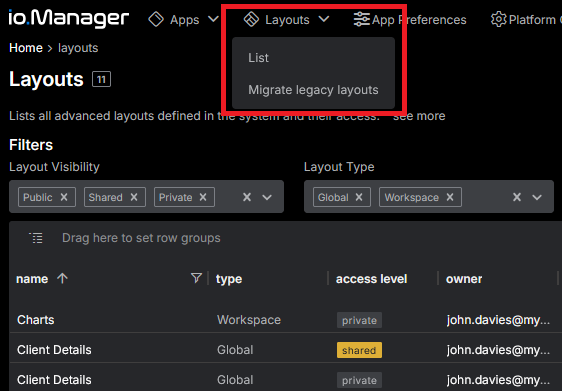
When the io.Manager Server uses advanced Layouts, the "Layouts" menu contains the "List" and "Migrate legacy layouts" pages:
Layouts List
The "List" page displays all advanced Layouts with their name, type, access level, owner, the users and groups with access to them, the creation and modification details, and whether they are disabled:
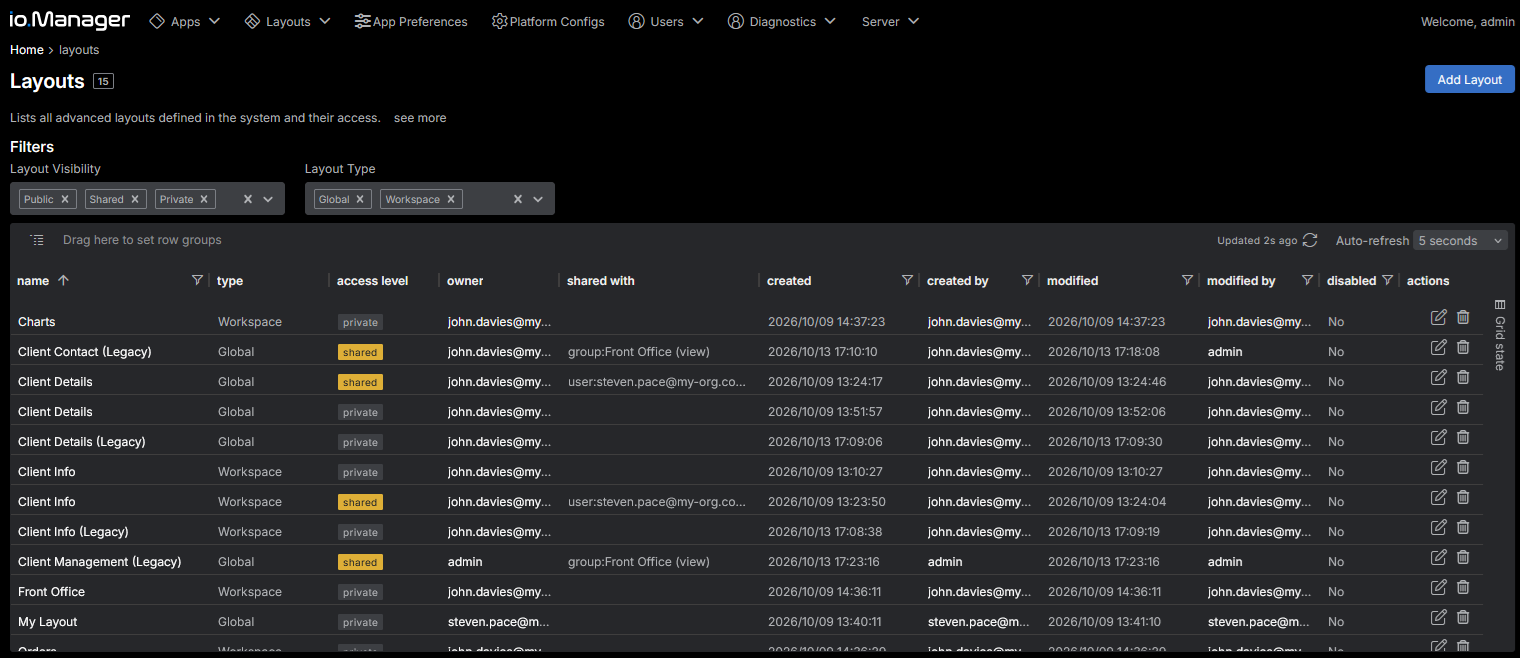
Use the "Layout Visibility" filter to show the Layouts with specific access levels ("Private", "Public", or "Shared"), and the "Layout Type" filter to show the Layouts of specific types ("Global" or "Workspace"). The Admin UI saves the filter selections for each user.
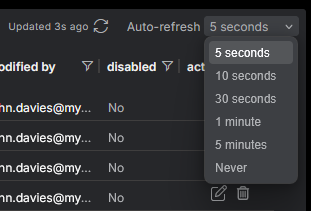
The list refreshes automatically every 5 seconds by default. Use the "Refresh now" button in the Layouts table header to refresh it immediately, or the "Auto-refresh" picker next to it to change the refresh interval or turn off the automatic refresh altogether. The Admin UI saves the selected interval for each user:
Users without the IO_MANAGER:LAYOUTS:WRITE permission group can only view the Layout. To delete a Layout, use the "Delete the layout" action.
Creating Layouts
To create a Layout, click the "Add Layout" button on the "List" page to open the Layout creation form:
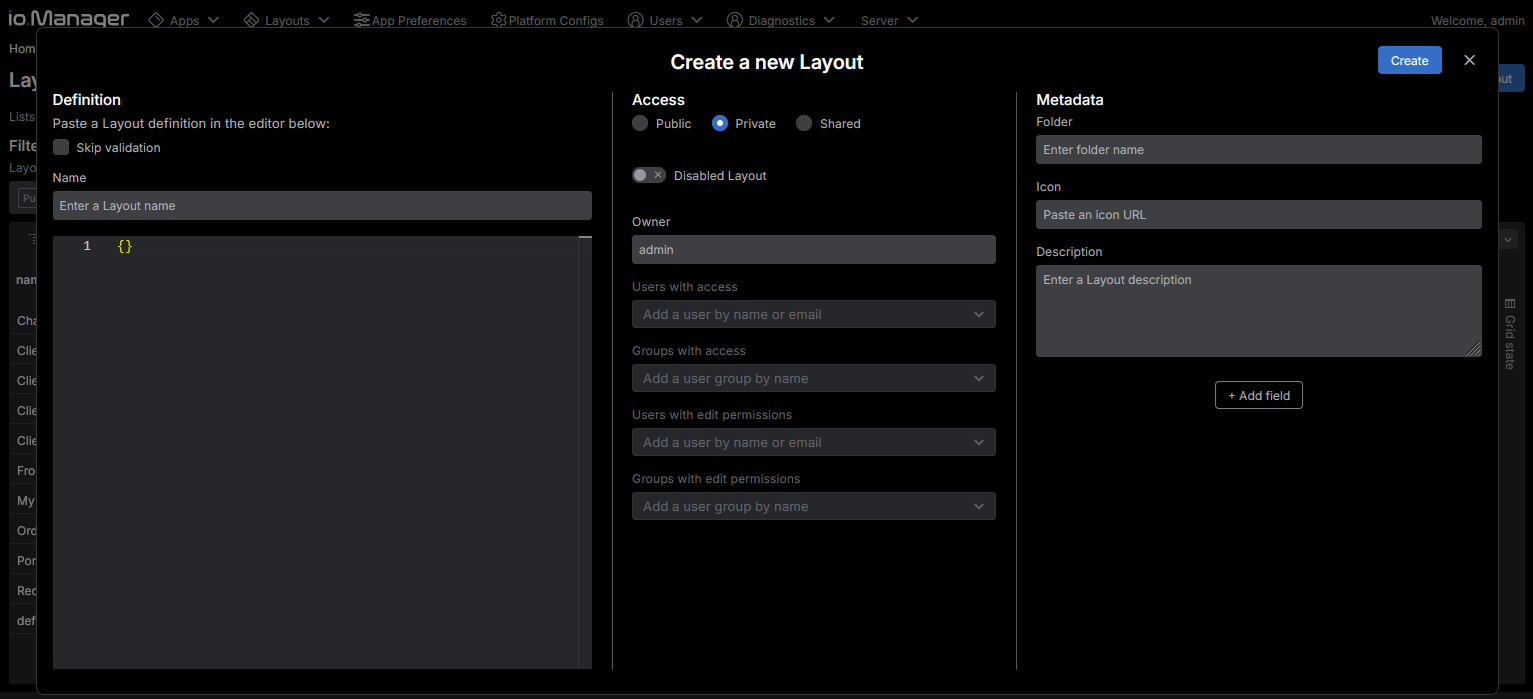
The Layout creation form has the following sections:
| Section | Description |
|---|---|
| "Definition" | The name and the JSON definition of the Layout. The type of the Layout (e.g., "Global" or "Workspace") is set in the definition. The Admin UI validates the definition against the Layout schema, unless you select "Skip validation". |
| "Access" | The access information of the Layout. |
| "Metadata" | The folder, icon, and description of the Layout, and any custom metadata fields. Use the "+ Add field" button to add a custom field with a string, number, boolean, or null value. The metadata is stored in the metadata property of the Layout definition. |
The "Access" section has the following fields:
| Field | Description |
|---|---|
| "Disabled Layout" | If enabled, the Layout won't be visible to any user. |
| "Groups with access" | Groups granted "view" access to a shared Layout. |
| "Groups with edit permissions" | Groups granted "edit" access to a shared or a public Layout. |
| "Owner" | Required. The user that owns the Layout. Unlike the io.Connect platforms, the Admin UI can change the owner of a Layout. |
| "Private" / "Public" / "Shared" | The access level of the Layout. A shared Layout must have at least one user or group with access. |
| "Users with access" | Users granted "view" access to a shared Layout. |
| "Users with edit permissions" | Users granted "edit" access to a shared or a public Layout. |
⚠️ Note that searching for users requires the
IO_MANAGER:USERS:READpermission group, and searching for groups requires theIO_MANAGER:GROUPS:READpermission group.
The sharing restriction doesn't apply to Layouts saved from the Admin UI. The Admin UI rejects Layouts that break the name uniqueness rule.
Editing Layouts
To open a Layout in the Layout editor, click its name in the list or the "Edit the layout" action:
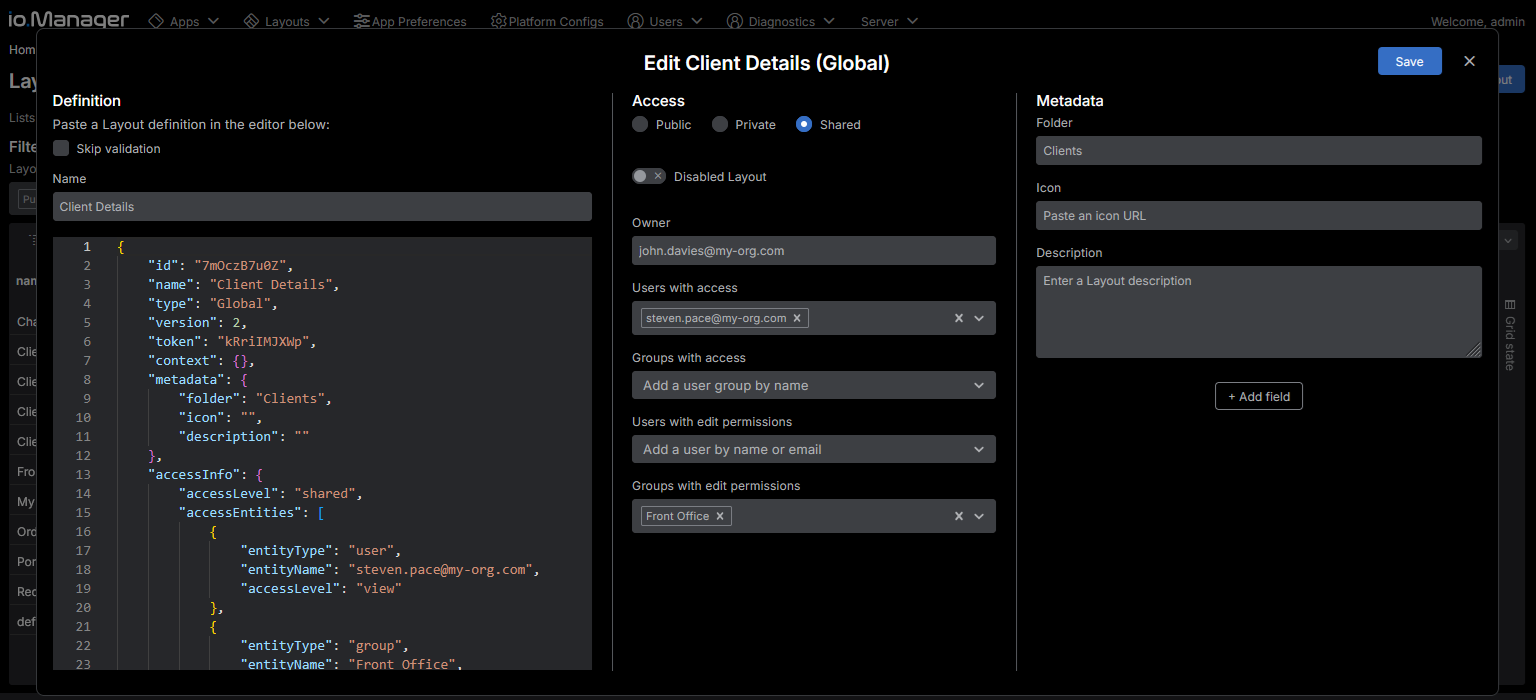
The Layout editor offers the same options as the Layout creation form. Use it to modify the Layout details - type, access information, metadata, and JSON definition. You can also add additional fields in the "Metadata" section as needed.
Migrating Legacy Layouts
The "Migrate legacy layouts" page runs the one-time migration of legacy Layouts to advanced Layouts.
Before the migration, the page lists the legacy Layouts that haven't been migrated yet, together with their legacy access, the advanced access they will receive, their owner, and the users and groups that will have access to them. When some of the Layouts are marked as default, the page also shows which of them will become the default Global Layout of their owner and which will lose their default designation.
To run the migration, click the "Start migration" button and confirm:
When the migration has completed without failures, the page shows that the migration is complete and can't be run again.
When the run completes with failures, the page lists the failed Layouts with the reason for each failure:
Resolve the reported reasons and click the "Run again" button to migrate the remaining Layouts.
User Layouts
To see the Layouts of a specific user, select the "All Users" page in the "Users" menu, click the name of the user, and select the "Layouts" tab:
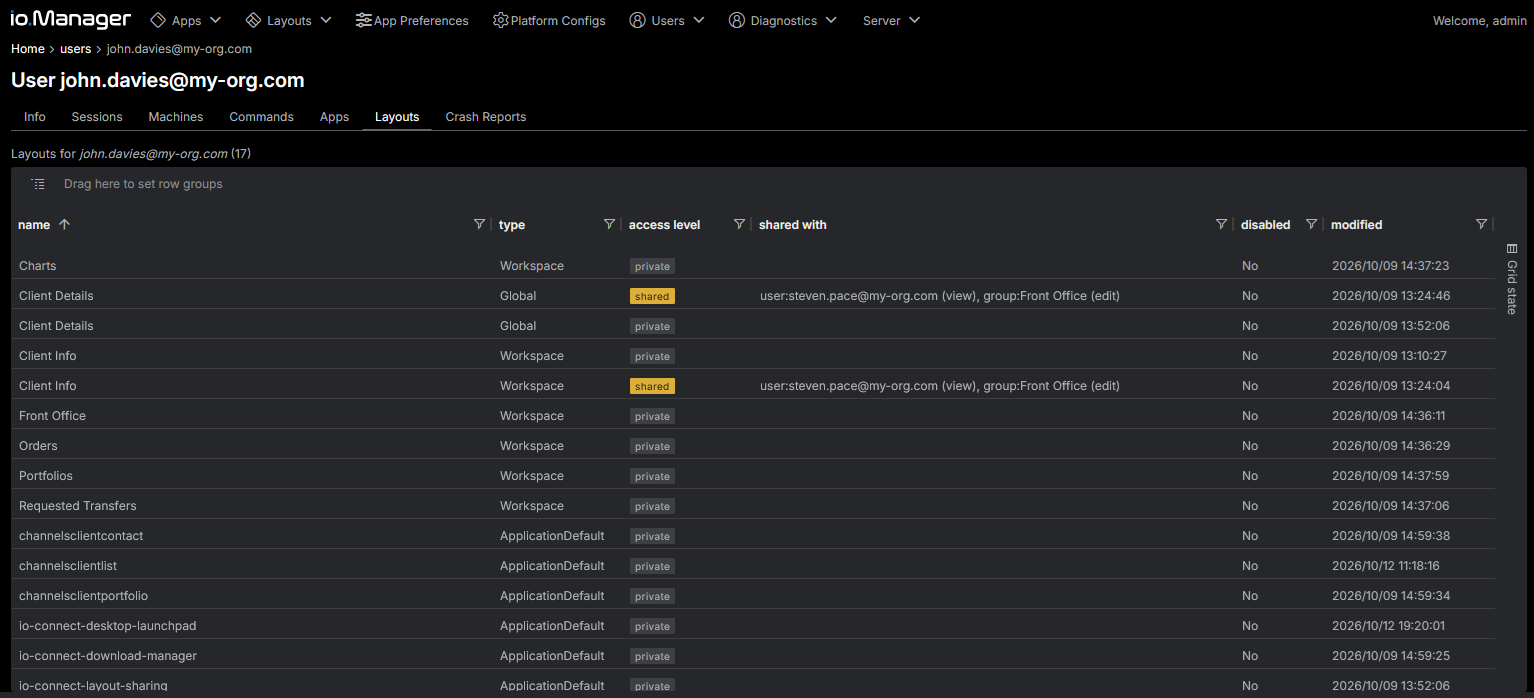
The tab lists all Global and Workspace Layouts owned by the user, as well as all saved app default Layouts for the user, with their name, type, access level, the users and groups with access to them, whether they are disabled, and the time of their last modification.
Legacy Layouts
When the io.Manager Server uses legacy Layouts, the "Layouts" menu contains the "List", "Per Group", and "Add Layout" pages:
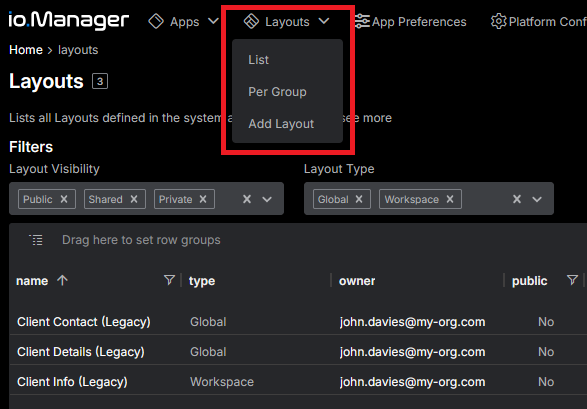
Layouts List
The "List" page displays all legacy Layouts with their name, type, owner, whether they are public, the groups that can see them, whether they are a default Global Layout, whether they are disabled, and the creation and modification details:
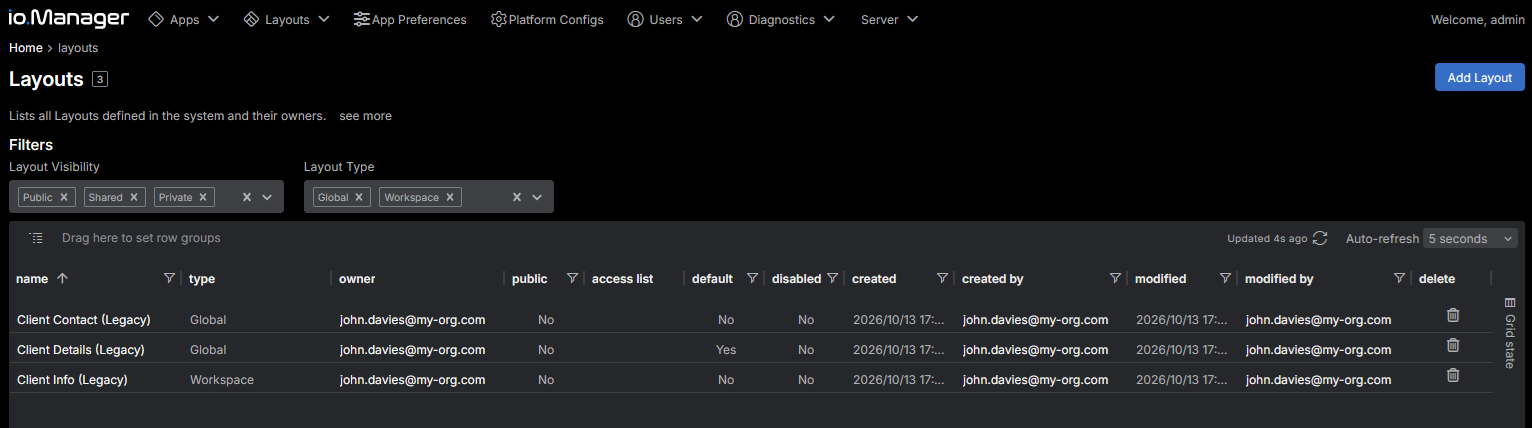
Use the "Layout Visibility" filter to show private, public, or shared Layouts, and the "Layout Type" filter to show the Layouts of specific types ("Global" or "Workspace"). The Admin UI saves the filter selections for each user.
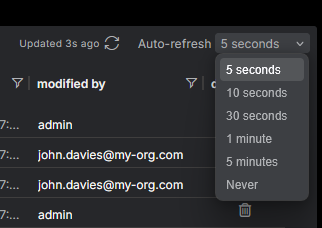
The list refreshes automatically every 5 seconds by default. Use the "Refresh now" button in the Layouts table header to refresh it immediately, or the "Auto-refresh" picker next to it to change the refresh interval or turn off the automatic refresh altogether. The Admin UI saves the selected interval for each user:
To open a Layout in the Layout editor, click its name. To delete a Layout, use the "Delete the layout" action.
Creating Layouts
To create a Layout, click the "Add Layout" item in the "Layouts" menu or the "Add Layout" button on the "List" page:
The Layout creation wizard guides you through the following steps:
"Settings" - paste the JSON definition of the Layout. The Admin UI validates the definition against the Layout schema, unless you select "Skip validation".
"Define access" - set the visibility of the Layout. Use the "Public Layout" toggle to make the Layout visible to all users, the "Groups" field to share the Layout with specific groups, or the "Owner (only if not public)" field to make the Layout private to a user. Use the "Disable layout" toggle to hide the Layout from all users. A public Layout can't be shared with specific groups, and a Layout shared with groups is a common Layout that has no specific owner.
Confirm - review the definition and the visibility of the Layout, and click "Create".
Editing Layouts
To edit a Layout, click its name in the list to open the Layout editor:
The Layout editing wizard offers the same options as the Layout creation wizard. Follow the same steps to modify the Layout definition and its access settings.
Layouts per Group
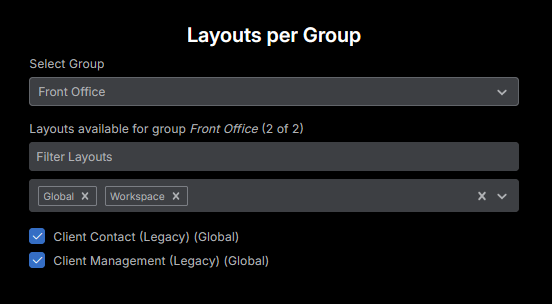
The "Per Group" page displays the Layouts available to a specific group. Select a group to see which of the Layouts it can access. Public Layouts are always available to all groups. Use the filter to display available Layouts by type. To share a Layout with the selected group or stop sharing it, select or clear the checkbox of the Layout:
⚠️ Note that using the "Per Group" page requires the
IO_MANAGER:GROUPS:READpermission group in addition to theIO_MANAGER:LAYOUTS:READpermission group. Changing the Layouts available to a group requires theIO_MANAGER:LAYOUTS:WRITEpermission group.
User Layouts
To see the Layouts of a specific user, select the "All Users" page in the "Users" menu, click the name of the user, and select the "Layouts" tab:
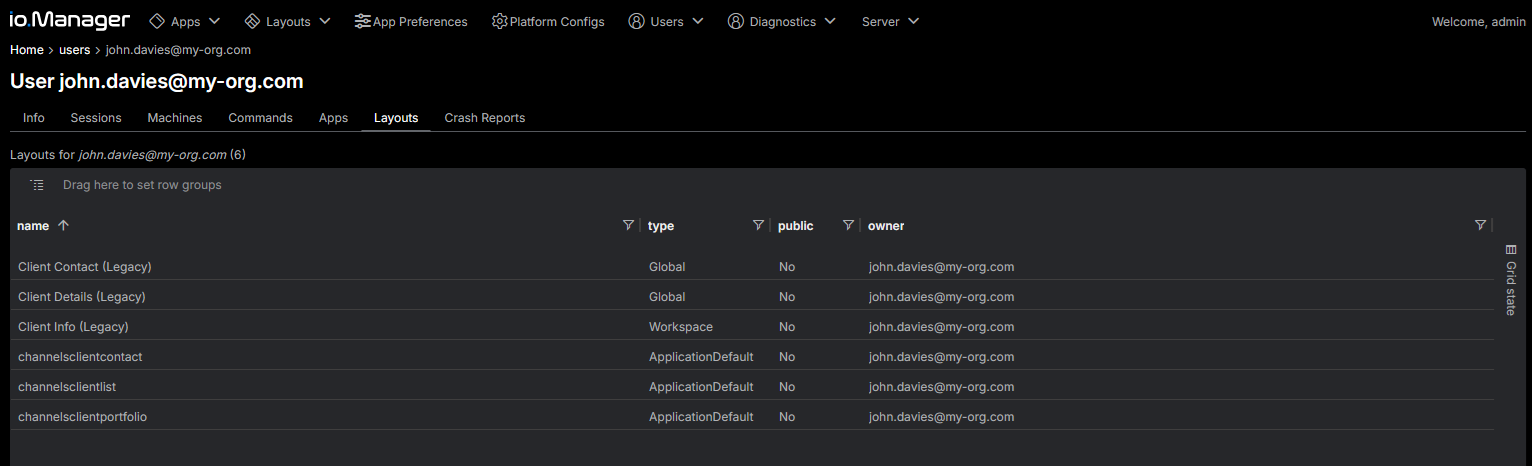
The tab lists all Global and Workspace Layouts available to the user, as well as all saved app default Layouts for the user, with their name, type, owner, and whether they are public.