
Notifications
Overview
Available since io.Connect Java 1.8.0
The Notifications API is accessible via the io.notifications() object.
⚠️ Note that the following sections describe the Notifications API available since io.Connect Java 1.8.0. The legacy Notifications API has been deprecated and it's highly recommended to use the new API for raising notifications.
Configuration
To specify global notification settings dynamically, use the configure() method. It accepts a NotificationConfiguration object as an argument with the following properties:
| Property | Type | Description |
|---|---|---|
closeNotificationOnClick |
boolean |
If true, when the user clicks on the body of a notification in the Notification Panel, the notification will be removed from the list. |
disabled |
boolean |
If true, will disable all notifications - notification toasts and notifications in the Notification Panel. |
placement |
PlacementSettings |
Placement settings for the Notification Panel and the notification toasts. |
showNotificationBadge |
boolean |
If true, a notification badge will be shown. |
snooze |
SnoozeSettings |
Snooze settings for notifications. |
sourceFilter |
NotificationFilter |
Filter with names of apps that are allowed or not allowed to raise notifications. |
toastExpiry |
Duration |
Interval after which the notification toasts will be hidden. Defaults to 15 seconds. |
toasts |
ToastSettings |
Settings for the notification toasts. |
toastsDisabled |
boolean |
If true, will disable notification toasts. |
To create a NotificationConfiguration object, use the provided builder.
To disable all notifications:
NotificationConfiguration config = NotificationConfiguration.builder()
        .disabled(true)
        .build();

io.notifications().configure(config);
To disable only toast notifications:
NotificationConfiguration config = NotificationConfiguration.builder()
        .toastsDisabled(true)
        .build();

io.notifications().configure(config);
To set the position of the Notification Panel and the notification toasts on the screen:
NotificationConfiguration config = NotificationConfiguration.builder()
        .placement(new NotificationConfiguration.PlacementSettings("left", "top-left"))
        .build();

io.notifications().configure(config);
To retrieve the current global notification settings, use the getConfiguration() method:
NotificationConfiguration config = io.notifications().getConfiguration().toCompletableFuture().join();Raising Notifications
To raise a notification from your app, use the raise() method of the API. The method accepts a NotificationOptions object as an argument with settings for the notification you want to raise. To create a NotificationOptions object, use the provided builder. The only required property is title, which can be set via the builder() method:
NotificationOptions options = NotificationOptions.builder("New Trade")
        .body("VOD.L: 23 shares sold @ $212.03")
        .action(NotificationAction.builder("HandleNotificationClick")
                .action("openClientPortfolio").title("Open Portfolio").build())
        .build();

// Raising a notification.
RaisedNotification notification = io.notifications().raise(options).toCompletableFuture().join();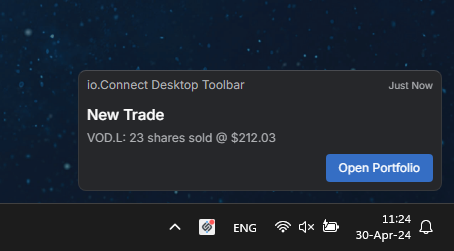
Notification Options
The following table lists some of the more important properties of the NotificationOptions object:
| Property | Type | Description |
|---|---|---|
body |
String |
The body text of the notification. |
clickInterop |
NotificationAction.InteropActionSettings |
Specifies an Interop method to invoke when the user clicks on the notification. |
data |
Object |
Arbitrary data associated with the notification. |
icon |
String |
URL of an icon to be displayed in the notification. |
image |
String |
URL of an image to be displayed in the notification. |
panelExpiry |
Duration |
Interval after which the notification will be removed from the Notification Panel. |
severity |
NotificationSeverity |
Defines the urgency of the notification: LOW, MEDIUM, HIGH, CRITICAL, or NONE. |
source |
String |
Overrides the source of the notification. Provide the name of the io.Connect app to display as the source. |
state |
NotificationState |
Notification state: ACTIVE, ACKNOWLEDGED, SEEN, CLOSED, STALE, SNOOZED, or PROCESSING. Defaults to ACTIVE. |
title |
String |
Required. The title of the notification. |
toastExpiry |
Duration |
Interval after which the notification toast will be hidden. |
type |
NotificationType |
NOTIFICATION or ALERT. This property is meant to distinguish between notification types for different visual representations. |
Notification Click
You can use the clickInterop property of the NotificationOptions object to specify an Interop method that will be invoked when the user clicks on the notification.
ℹ️ For details on how to use standard handlers for notification clicks, see the
onClick()method of theRaisedNotificationobject in the Raised Notification section.
For instance, another app has registered an Interop method:
io.interop().register("HandleNotificationClick", (arg, caller) -> {
    System.out.println("Notification clicked: " + arg);
    return Collections.emptyMap();
});
To invoke this Interop method for handling the notification click, define a NotificationAction.InteropActionSettings object and assign it as a value to the clickInterop property of the NotificationOptions object:
Map<String, Object> args = new HashMap<>();
args.put("name", "Vernon Mullen");
args.put("id", "1");

NotificationAction.InteropActionSettings interopSettings = NotificationAction.InteropActionSettings.any(
        "HandleNotificationClick", args);

NotificationOptions options = NotificationOptions.builder("New Trade")
        .body("VOD.L: 23 shares sold @ $212.03")
        .clickInterop(interopSettings)
        .build();

io.notifications().raise(options);
Notification Actions
You can create action buttons for the notification. When the user clicks on an action button, the specified Interop method will be invoked.
ℹ️ For details on how to use standard handlers for action button clicks, see the
onAction()method of theRaisedNotificationobject in the Raised Notification section.
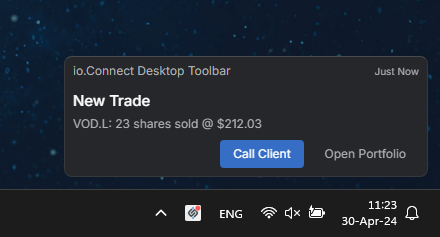
To define action buttons, use the action() method of the NotificationOptions builder when creating a notification:
// Registering Interop methods to be used as callbacks for notification actions.
io.interop().register("CallClient", (arg, caller) -> Collections.emptyMap());
io.interop().register("OpenPortfolio", (arg, caller) -> Collections.emptyMap());

NotificationOptions options = NotificationOptions.builder("New Trade")
        .body("VOD.L: 23 shares sold @ $212.03")
        // Provide the Interop method name, a title for the action button,
        // and an optional map with parameters to pass to the Interop method.
        .action("CallClient", "Call Client", Collections.singletonMap("id", 42))
        .action("OpenPortfolio", "Open Portfolio", Collections.singletonMap("id", 42))
        .build();

io.notifications().raise(options);
For more control over actions, you can use NotificationAction.builder() directly:
NotificationAction action = NotificationAction.builder("CallClient")
        .title("Call Client")
        .label("Call Client")
        .parameters(Collections.singletonMap("customerId", "11"))
        .interop(NotificationAction.InteropActionSettings.any("CallClient", Collections.singletonMap("customerId", "11")))
        .build();

NotificationOptions options = NotificationOptions.builder("New Trade")
        .action(action)
        .build();

io.notifications().raise(options);
Raised Notification
The raise() method returns a CompletionStage<RaisedNotification>. The RaisedNotification object provides access to the notification data and per-notification event callbacks:
RaisedNotification notification = io.notifications().raise(options).toCompletableFuture().join();

// Access the notification data.
NotificationData data = notification.getData();
System.out.println("Notification ID: " + data.getId());

// Provide a callback to be invoked when a notification action button is clicked.
notification.onAction(action -> System.out.println("Action clicked: " + action));

// Provide a callback to be invoked when the notification body is clicked.
notification.onClick(() -> System.out.println("Notification was clicked."));

// Provide a callback to be invoked when the notification is shown.
notification.onShow(() -> System.out.println("Notification was shown."));

// Provide a callback to be invoked when a notification error occurs.
notification.onError(error -> System.out.println("Notification error: " + error));

// Provide a callback to be invoked when the notification is closed.
notification.onClose(() -> System.out.println("Notification was closed."));
Listing Notifications
To retrieve a list of all available notifications, use the list() method:
List<NotificationData> allNotifications = io.notifications().list().toCompletableFuture().join();Clearing Notifications
To clear all notifications, use the clearAll() method:
io.notifications().clearAll();To clear a specific notification, use the clear() method and pass as a required argument the ID of the notification to clear:
io.notifications().clear(notification.getData().getId());To clear all notifications seen by the user, use the clearOld() method:
io.notifications().clearOld();To clear multiple notifications at a time, use the clearMany() method and pass as a required argument a list of IDs of the notifications to clear:
List<String> ids = allNotifications.stream()
        .map(NotificationData::getId)
        .collect(Collectors.toList());

io.notifications().clearMany(ids);
Clicking Notifications
To click a notification or a notification action programmatically, use the click() method and pass either only the notification ID, or the notification ID and the name of the action to click:
String id = notification.getData().getId();

// Clicking a notification.
io.notifications().click(id, null, null);

// Clicking a notification action.
io.notifications().click(id, "openClientPortfolio", null);

// Clicking a notification and closing it.
io.notifications().click(id, null, Notifications.ClickOptions.shouldClose(true));
Snoozing Notifications
To snooze a notification programmatically, use the snooze() method and pass as required arguments the ID of the notification to snooze and the duration in milliseconds for which to snooze it:
io.notifications().snooze(notification.getData().getId(), 600000);To snooze multiple notifications at a time, use the snoozeMany() method and pass as required arguments a list of IDs of the notifications to snooze and the duration in milliseconds for which to snooze them:
List<String> ids = allNotifications.stream()
        .map(NotificationData::getId)
        .collect(Collectors.toList());

io.notifications().snoozeMany(ids, 600000);
Updating Notification Data
To update the arbitrary data associated with the notification, use the updateData() method and provide the ID of the notification and the new data:
String id = notification.getData().getId();
Map<String, Object> newData = Collections.singletonMap("io", 42);

io.notifications().updateData(id, newData);
Importing Notifications
Importing notifications can be useful if you want to persist the notification history between user sessions. Even if the user shuts down the platform, you can dynamically import the previously saved batch of existing notifications when the user logs in again. All imported notifications will be visible in the Notification Panel and will be available in the notification list that can be accessed programmatically, but only notifications with state set to ACTIVE will be displayed as notification toasts to the user. An event for a raised notification will be triggered for all imported notifications.
To import notifications, use the importNotifications() method and provide a list of NotificationOptions objects as a required argument:
List<NotificationOptions> notifications = Arrays.asList(
        NotificationOptions.builder("New Trade")
                .body("VOD.L: 23 shares sold @ $212.03")
                .state(NotificationState.ACTIVE)
                .build(),
        NotificationOptions.builder("New Trade")
                .body("VOD.L: 42 shares bought @ $211.73")
                .state(NotificationState.SEEN)
                .build()
);

List<NotificationData> imported = io.notifications().importNotifications(notifications)
        .toCompletableFuture().join();
Notification State
Notifications can have the following states describing their lifetime:
| State | Description |
|---|---|
ACKNOWLEDGED |
A notification can be marked as acknowledged when the user has interacted with it by clicking on the notification or on an action in it. |
ACTIVE |
A notification can be marked as active when it's raised, but the user hasn't seen it, or interacted in any way with it yet. |
CLOSED |
A notification can be marked as closed when the user has closed the notification in the Notification Panel. |
PROCESSING |
A notification can be marked as processing when its state is in the process of changing (e.g., the user interacts with a notification from the UI, you make a request to a remote service to update the notification state, and you are still waiting for a response). |
SEEN |
A notification can be marked as seen when the user has seen it (e.g., by opening the Notification Panel). |
SNOOZED |
A notification can be marked as snoozed when the user snoozes it from the UI. |
STALE |
A notification can be marked as stale after a predefined period of time. |
To set the state of a notification, use the setState() method and pass as required arguments the ID of the notification whose state to set and the NotificationState value to which to set it:
String id = notification.getData().getId();

io.notifications().setState(id, NotificationState.ACKNOWLEDGED);
To set the states of multiple notifications at a time, use the setStates() method and pass as required arguments a list of IDs of the notifications whose states to set and the NotificationState value to which to set them:
List<String> ids = allNotifications.stream()
        .map(NotificationData::getId)
        .collect(Collectors.toList());

io.notifications().setStates(ids, NotificationState.SEEN);
Notification Filters
Notifications can be filtered programmatically based on lists of allowed and blocked apps.
To set a notification filter, use the setFilter() method and pass a NotificationFilter object as an argument. To create a NotificationFilter object, use the provided builder:
NotificationFilter filter = NotificationFilter.builder()
        .allowed(Collections.singletonList("*"))
        .blocked(Arrays.asList("app-one", "app-two"))
        .build();

io.notifications().setFilter(filter);
To get the current notification filter, use the getFilter() method:
NotificationFilter filter = io.notifications().getFilter().toCompletableFuture().join();Events
The Notifications API provides methods for subscribing for notification events. All methods return an AsynchronousCloseable, which you can use to unsubscribe from the respective event.
To get notified when a notification is raised, use the onRaised() method:
AsynchronousCloseable subscription = io.notifications()
        .onRaised(n -> System.out.println("Notification raised: " + n.getId()));
To get notified when a notification is closed, use the onClosed() method:
io.notifications().onClosed(notification -> System.out.println("Notification closed: " + notification.getId()));To get notified when the state of a notification is changed, use the onStateChanged() method:
io.notifications().onStateChanged((notification, state) ->
        System.out.println("Notification " + notification.getId() + " changed to " + state));
To get notified when the number of active notifications changes, use the onCounterChanged() method:
io.notifications().onCounterChanged(count ->
        System.out.println("Active notifications: " + count));
To get notified when the global notification settings change, use the onConfigurationChanged() method:
io.notifications().onConfigurationChanged(config ->
        System.out.println("Notification settings updated."));
To get notified when the data property of a notification is updated, use the onDataChanged() method:
io.notifications().onDataChanged((notification, data) ->
        System.out.println("Data changed for notification " + notification.getId() + ": " + data));
Notification Panel
The Notification Panel can be controlled programmatically - show, hide or toggle its visibility. The Notification Panel API is accessible via the io.notifications().panel() object.
Operations
To check whether the Notification Panel is visible, use the isVisible() method:
boolean isVisible = io.notifications().panel().isVisible().toCompletableFuture().join();To show the Notification Panel, use the show() method:
io.notifications().panel().show();To hide the Notification Panel, use the hide() method:
io.notifications().panel().hide();To toggle the visibility of the Notification Panel, use the toggle() method:
io.notifications().panel().toggle();Events
To get notified when the visibility of the Notification Panel changes, use the onVisibilityChanged() method:
io.notifications().panel().onVisibilityChanged(isVisible ->
        System.out.println("Notification Panel is " + (isVisible ? "visible" : "hidden")));
Legacy Notifications API
⚠️ Note that the legacy Notifications API has been deprecated. It's highly recommended to use the new Notifications API for raising notifications instead.
To raise a notification with the legacy Notifications API, use the create() method to build a Notification instance. Then, use the raise() method of the Notification instance and pass a NotificationSeverity value as an argument to raise the notification:
// Creating a notification instance.
Notification notification = io.notifications()
        .create("Notification", notification -> notification
                .title("New Trade")
                .description("VOD.L: 23 shares sold @ $212.03"));

// Raising the notification.
notification.raise(NotificationSeverity.LOW);
To specify what happens when the user clicks on the notification, use the details() method and pass the name of an Interop method to invoke when the notification is clicked:
io.notifications()
        .create("Notification", notification -> notification
                .title("New Trade")
                .details("DetailsHandler"));
To add action buttons, use the action() method and pass as arguments the name of an Interop method to invoke when the action is clicked, the title of the action button, and an optional map with parameters to pass to the Interop method:
io.interop().register("CallClient", (arg, caller) -> Collections.emptyMap());
io.interop().register("OpenPortfolio", (arg, caller) -> Collections.emptyMap());

Notification notification = io.notifications()
        .create("Notification", notification -> notification
                .title("New Trade")
                .action("CallClient", "Call Client", Collections.singletonMap("id", 42))
                .action("OpenPortfolio", "Open Portfolio", Collections.singletonMap("id", 42)));

notification.raise(NotificationSeverity.LOW);